
Removing a photo background without uploading it
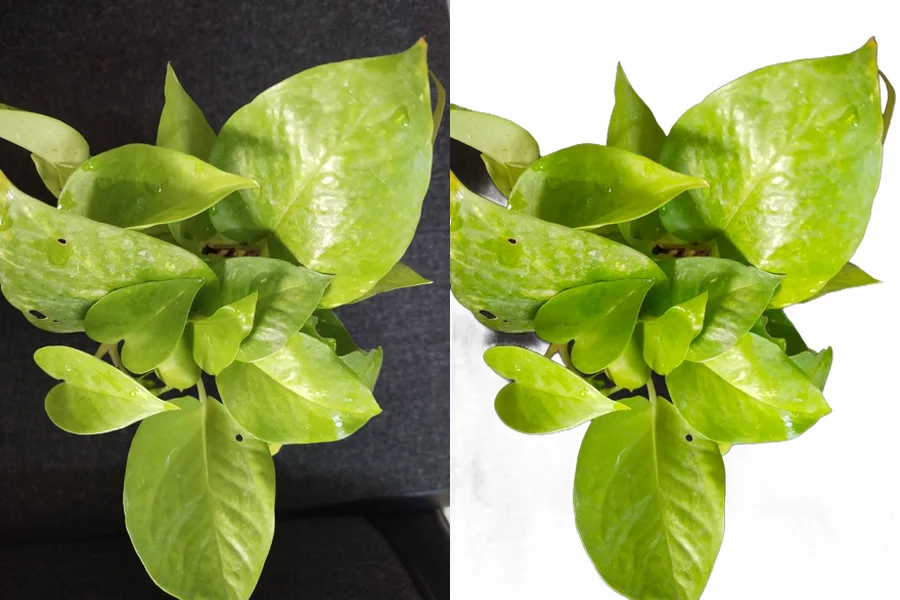
You want a product shot on white, or a portrait cut out of its background. Nearly every background remover does that by sending your picture to somebody's server. There is a way to skip that part:bg.addy.ie, which is free. We used it, andchecked the no-upload claim against the browser's own network log.
1. What it is
- Free, with no sign-up.
- Built by Addy Osmani (a Google engineer known for his writing on web performance). The source is public under the MIT licence.
- There are exactly three buttons — Delete, Edit, Download — so there is nothing to learn.
- The AI runs inside your browser. Your picture goes nowhere (we verify this in section 4).
2. How to use it
Open bg.addy.ie and you get this.
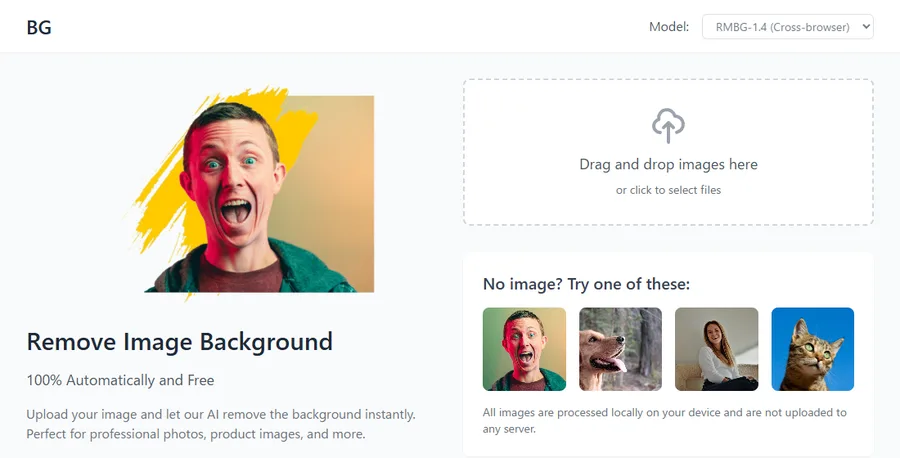
- Drop a photo onto the box, or click to pick one.
- Wait. The first image takes about a minute — section 5 explains why.
- When the background turns into a checkerboard, press Download to save a PNG.
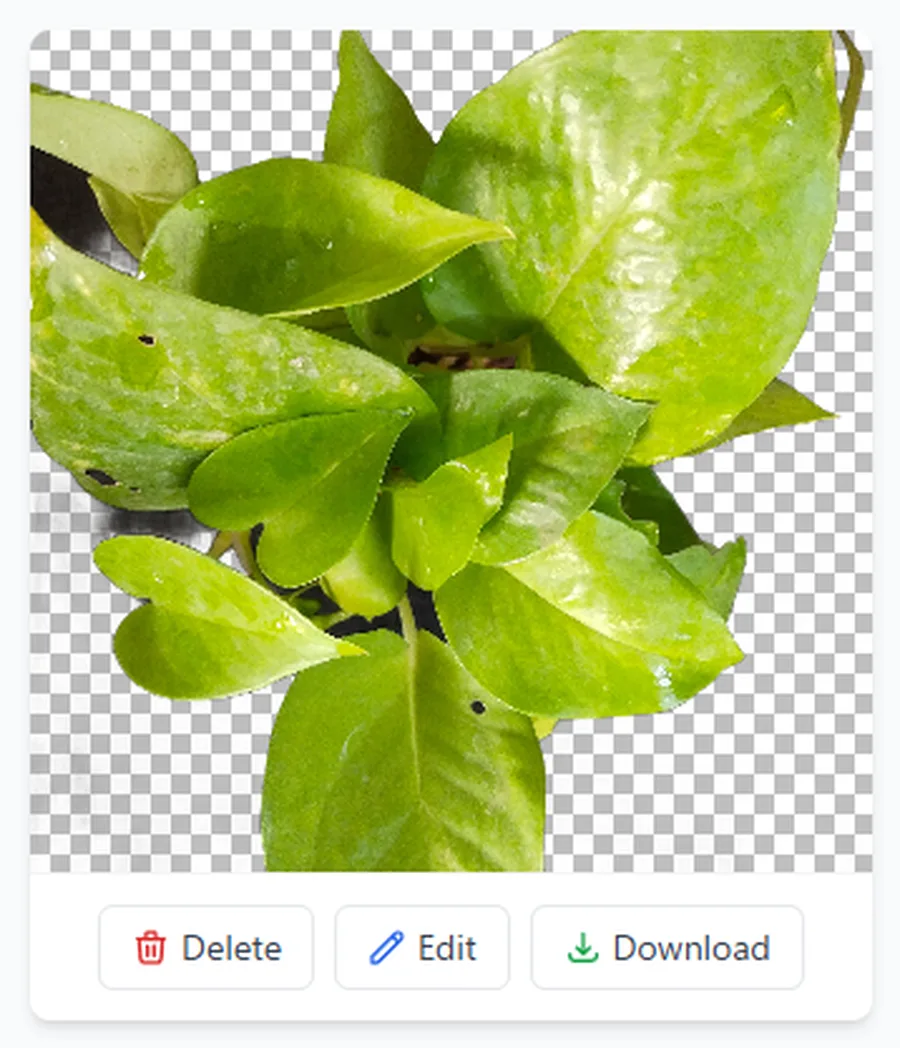
The resolution is left alone: a 1920×2560 photo came back as a 1920×2560 PNG. Nothing is shrunk and no watermark is added.
3. Putting a colour or image behind
Marketplaces often want a white background rather than a transparent one. That is whatEdit is for.
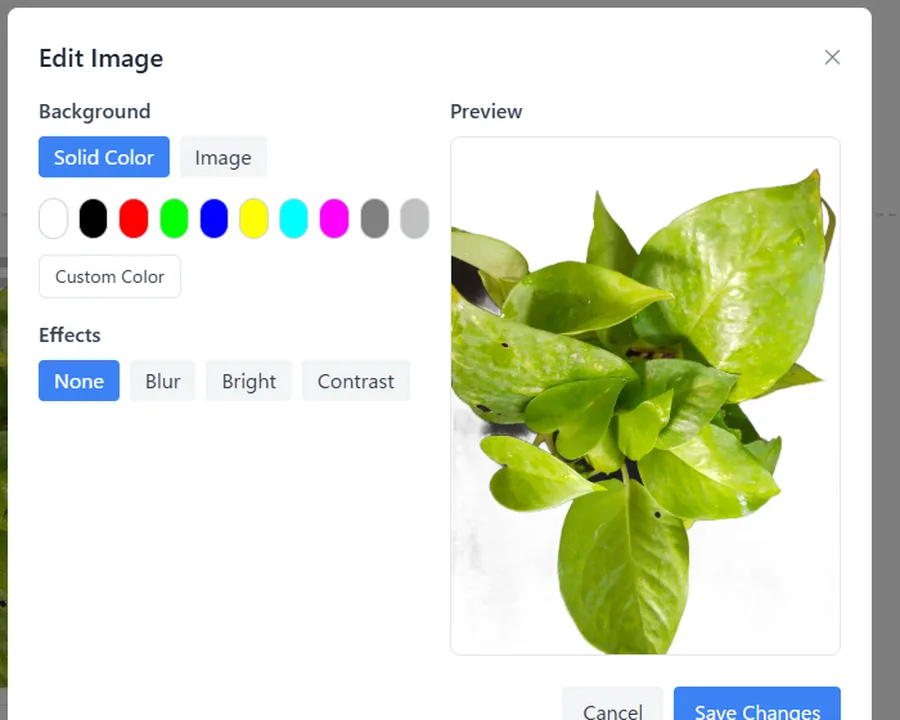
- Solid Color — white, black and so on, or any colour through Custom Color.
- Image — use one of your own pictures as the backdrop.
- Effects — blur, brightness, contrast. Useful for softening a busy background behind a person.
- Then Save Changes, and Download.
4. Checking the "nothing is uploaded" claim
Plenty of services say they do not upload your files. Saying it is not proof. So werecorded every request the browser made while processing six photos.
- Not one request carried an image out. Across every run, the number of POST and PUT requests — the kind that send data — stayed at zero.
- Everything was a download: the AI model (about 42 MB) and the library that runs it. The tool fetches its tools and then works locally.
One thing it could not do: work offline. With the network disconnected, it failed — the model is fetched each session rather than kept. (For contrast, the tools on this site keep working after the page has loaded, even with the connection cut.)
Tested on 23 September 2026 with Chrome on Windows. A site can change, so check for yourself before trusting it with anything sensitive.
5. How long it takes
Measured on a Windows laptop in Chrome, with photos around 1920 pixels:
- First image: 45 seconds, including the 42 MB model download.
- After that: 23–40 seconds per image, since the model is already loaded.
- Switching Model to MODNet (WebGPU) gave 24 seconds. It needs a WebGPU-capable browser (Chrome or Edge), and on our test photo the two models looked nearly identical.
Server-based removers finish in a few seconds, so this is slow by comparison. They are running on strong hardware — and you pay for that speed with your picture. That is the trade.
6. Where it struggles
Across four kinds of photo, these are the cases that went wrong:
- Bright objects right next to the subject. In a portrait, a white object beside the shoulder was kept instead of removed.
- Gaps between leaves. Look closely at the plant above and a little of the original background survives between the leaves on the left. Outlines are its strength; enclosed gaps are not.
- Glass and anything see-through — a weak spot for this whole class of tool.
Hair came out far better than expected, so portraits are usually fine. If a result disappoints, switching the model and trying again sometimes helps.
7. When to use it, when not to
- Use it for pictures you would rather not hand over: work material, family photos, products not announced yet. A handful of images. You can wait a minute.
- Skip it for batches of dozens, for anything urgent, or on an older phone, where the processing can stall.
8. After you have the cut-out
What usually comes next is on this site, and also runs without uploading:
- Convert images — turn the transparent PNG into JPEG or WebP, or change its size.
- Image to PDF — put the cut-outs together into one document.
Questions
Why is it free? Will it ask for money later?
It is an experimental tool its author published with the source open (MIT). There is nothing to sign up for and no pricing page. Since the work happens on your machine, it costs the author nothing to run.
Does it work on a phone?
It opens in a phone browser, but the processing is much heavier there, and the 42 MB download counts against your data. Use Wi-Fi if you are not in a hurry.
Can I do a batch?
Drop several images and they are processed one after another — but at 20–40 seconds each, dozens is not realistic.
Can I use the results commercially?
The tool is MIT-licensed and puts no conditions on the output. The rights to the photo itself are a separate matter — use pictures you took or are allowed to use.
Related
- bg.addy.ie — the tool tested here
- Convert images
- Image to PDF
- All posts
Photographs in this article are CC0 images from Wikimedia Commons.