
iPhone video will not play on Windows: how to fix it
You send a video from an iPhone and the person on Windows cannot play it. The screen stays black while the sound plays, or the player simply refuses the file. Nothing is broken —the video is in a format their computer does not understand.
1. What is actually going on
There are two separate things at play in an iPhone video.
- .MOV — the container, Apple's own. Some Windows software will not open it at all.
- HEVC (H.265) — the way the picture is compressed. It has been the iPhone default since the iPhone 7. Files are smaller, but a device without HEVC support shows no picture. Sound but no video is the classic symptom.
Windows 10 and 11 need the HEVC extension from the Microsoft Store — a paid one-off purchase of about a dollar. If the other person does not have it, waiting will not help. Converting to MP4 (H.264) removes the problem entirely.
2. Convert the video you already have
Drop the file onto Convert MOV to MP4. The conversion runs inside your browser, so the video is never uploaded.
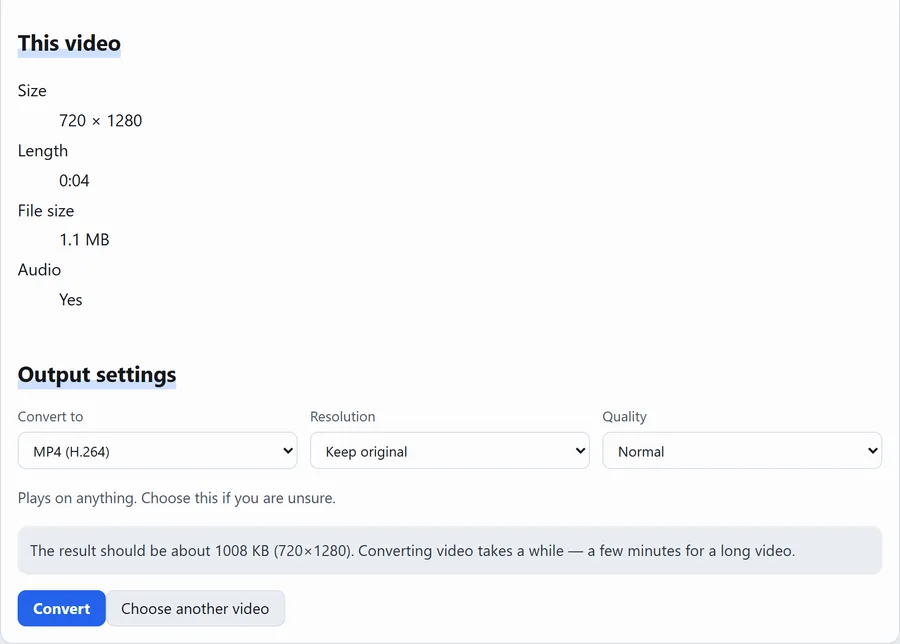
Steps
- Drop the video from the iPhone onto the page.
- Check that "Convert to" says MP4 (H.264) — it is selected for you on that page.
- Leave Quality on Normal. Use High to stay closer to the original, or Smaller file to save space.
- Press Convert and save the MP4.
Expect it to take about as long as the video itself: roughly a minute for a one-minute clip. Setting Resolution to 720p makes it quicker.
The page opens with MP4 already selected.
3. Stop it happening again (an iPhone setting)
Change this once and every video you shoot from then on will play anywhere.
- Open Settings.
- Tap Camera.
- Tap Formats.
- Choose Most Compatible.
Video is then recorded as H.264 and photos as JPEG. Files get roughly 1.5 to 2 times larger, but they open everywhere. Videos you have already shot are not affected — convert those using the steps above.
4. When a portrait video comes out sideways
A video shot holding the phone upright is stored sideways with a separate "rotate when playing" flag. Software that ignores the flag shows it on its side.
The converter reads that flag and writes the file the way you see it, so the MP4 is upright in any player.
5. If it still will not play
- Sound but no picture — that is HEVC. Convert it to MP4 as above.
- The file will not open or is reported as damaged — the transfer may have been cut short. Copy it again over a USB cable or through iCloud rather than a messaging app.
- It is too large to send — seeA video is too large to send.
Questions
Should I just buy the HEVC extension?
It is a one-off purchase and it solves it on your own machine. But everyone you send the video to needs the same purchase, so converting to MP4 is the safer choice for files you are sharing.
Does converting lose quality?
The picture is re-encoded, so a little. Choose High and the difference is hard to see. Note that no setting can make it better than the original.
How large a file can I convert?
Up to 1 GB. For anything larger, cut the part you need first withTrim video, then convert.
I heard AirDrop and email convert it automatically
Sometimes, when the receiving device is not an Apple one — but not reliably. Setting Most Compatible, or converting before you send, is the dependable route.
Related
- Convert MOV to MP4 — the tool used here.
- Compress video — shrink it to a size you name.
- Extract audio — keep only the sound.
- All posts